From screenshot to spreadsheet
Use AI to extract data from an image into the columns you need. Start with a table screenshot, an invoice, or a short record. You can also paste text. Choose Extract to table above, name your fields, and add one image.
- Choose the fields. Enter 1–10 distinct names, separated by commas.
- Add your source and send. You can prepare it before signing in. Sending requires Google; after sign-in, your pending message continues once.
- Check and export. Review values against the source, ask for a correction in the conversation, then copy the table or download CSV for your spreadsheet.
No API key needed. Use Claude Haiku online for chat and summaries.
Source images and reference tables
These self-authored images and manually transcribed reference tables show what to check in an extraction. They are not customer records or model outputs. Compare your own result against the source; AI can make mistakes. Loading a sample prepares a draft. Sending it runs a real request and uses credits.
A table screenshot: keep the rows and columns
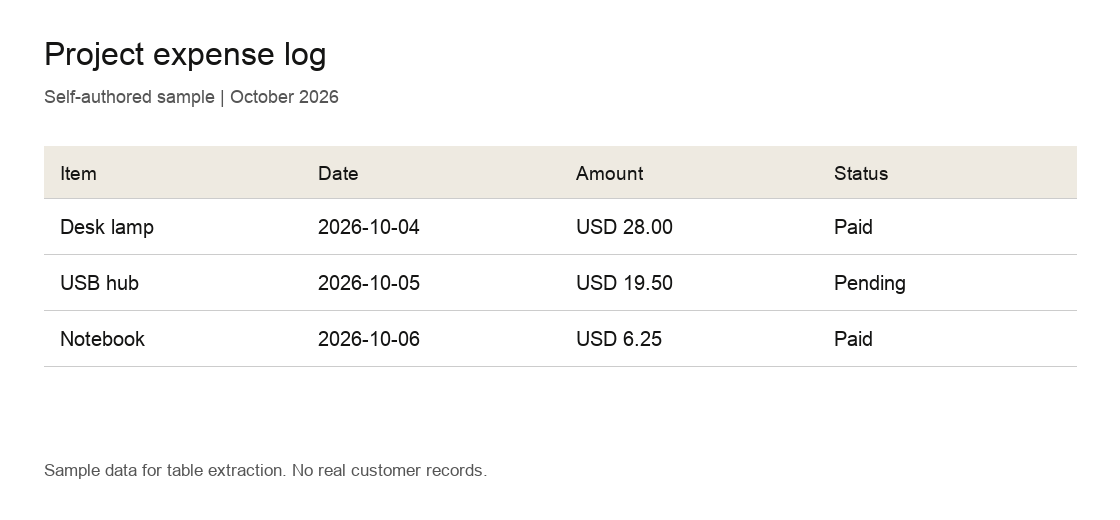
Fields: Item, Date, Amount, Status
| Item | Date | Amount | Status |
|---|---|---|---|
| Desk lamp | 2026-10-04 | USD 28.00 | Paid |
| USB hub | 2026-10-05 | USD 19.50 | Pending |
| Notebook | 2026-10-06 | USD 6.25 | Paid |
Reference check: three rows, original date formats, currency labels and statuses.
An invoice: extract only the fields you need
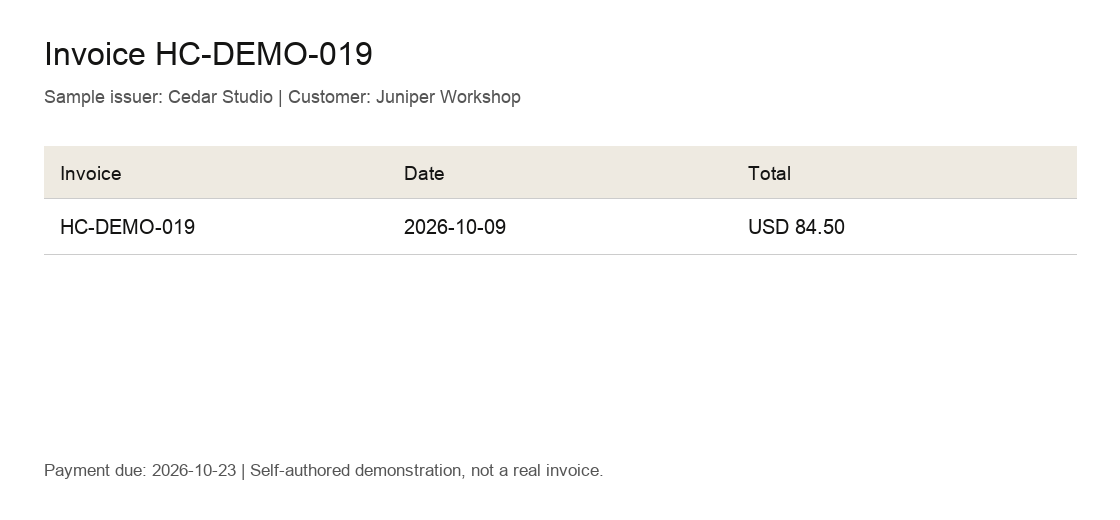
Fields: Invoice, Customer, Date, Total, Due date
| Invoice | Customer | Date | Total | Due date |
|---|---|---|---|---|
| HC-DEMO-019 | Juniper Workshop | 2026-10-09 | USD 84.50 | 2026-10-23 |
Reference check: customer comes from the source heading; the payment due date differs from the invoice date.
Missing fields: keep the gaps visible
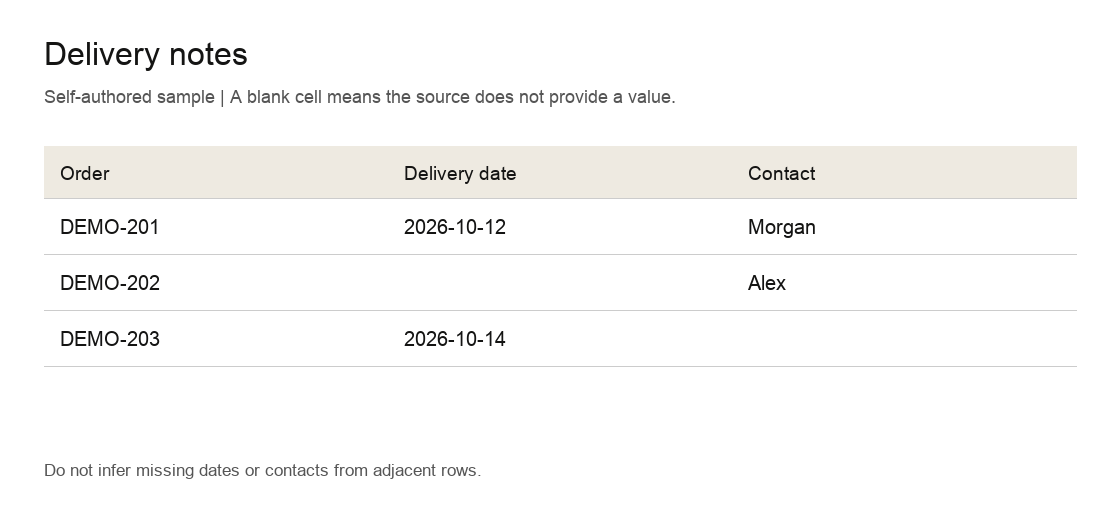
Fields: Order, Delivery date, Contact
| Order | Delivery date | Contact |
|---|---|---|
| DEMO-201 | 2026-10-12 | Morgan |
| DEMO-202 | Not found | Alex |
| DEMO-203 | 2026-10-14 | Not found |
Reference check: two blank cells are represented as Not found; no date or contact is inferred.
Formats, limits, and credits
- Images
- One static JPEG, PNG, or WebP per message, up to 5 MiB (5,242,880 bytes) and 16 megapixels. At most three images in a conversation. Large images are resized for processing; small text may lose detail.
- Output
- A table you can copy, or a CSV download that spreadsheet apps can open. No native Excel file, PDF upload, bulk processing, or automatic reading of links.
- Missing values
- The extraction instructions ask for “Not found” when a field is absent or unreadable. Always check the source: AI can miss rows, merge cells, or return an incorrect value.
- Cost
- New Google accounts receive up to 10 one-time trial credits, subject to the free budget and model availability. Starter is $9 for 1,000 credits; Plus is $19 for 3,000. No subscription. Credit purchases are available. View pricing and refunds.
- Per request
- Signed-in users see an estimate before sending. Actual input and output tokens determine the charge, including images and conversation context. There is no fixed price per image. Failed requests release the reservation; trying again uses credits when it succeeds.
- Privacy
- Your image is sent for input checks and model processing. Saved conversations are private; these public samples contain only self-authored data. Read the privacy policy.
Choose the workflow that fits your source
HaikuChat is useful when you want to name a few fields and discuss the result in the same conversation. For a large batch or an Excel-specific workflow, check a dedicated extraction tool’s current limits and privacy terms.
imgtotable and ImageToTable.co advertise image-to-table and CSV export on their product pages (reviewed October 9, 2026). We have not run a matched accuracy or speed comparison, so these examples do not establish that HaikuChat is better.
Compare the same source and fields: inspect row completeness, missing values, export format, sign-in requirements, and the actual cost. Use the public sample images above to make your own check.
Extract your image